
Instructions: June 26 Membership Meeting
On Wednesday June 24 the Election Committee oversaw nominations to the Association’s executive offices. Following nominations the Election Committee took a recess that will reconvene at the top of this meeting.
This will be a hybrid meeting, meaning it will be held in person at DC 37 Headquarters (125 Barclay St. New York) and online via Webex. See below for instructions on how to join Friday’s meeting.
IN-PERSON INSTRUCTIONS:
The in-person portion of the General Membership Meeting will be held at DC 37 Headquarters (125 Barclay St New York, NY 10007).
Check in for this meeting will start promptly at 10:00 AM with programming to follow at 10:30 AM.
PHONE INSTRUCTIONS:
|
Join by phone
+1-650-479-3208 United States Toll
You will be prompted to ender Meeting number and password.
Meeting number (access code): 2535 994 5116
Meeting password: s4D2aBCUQQ8
If you are using a smartphone, please make sure you are muted. This means the microphone on your screen should have a line through it and turn red.
If you are using a landline phone, you will need to be manually muted or unmuted by the meeting host.
WEBEX INSTRUCTIONS:
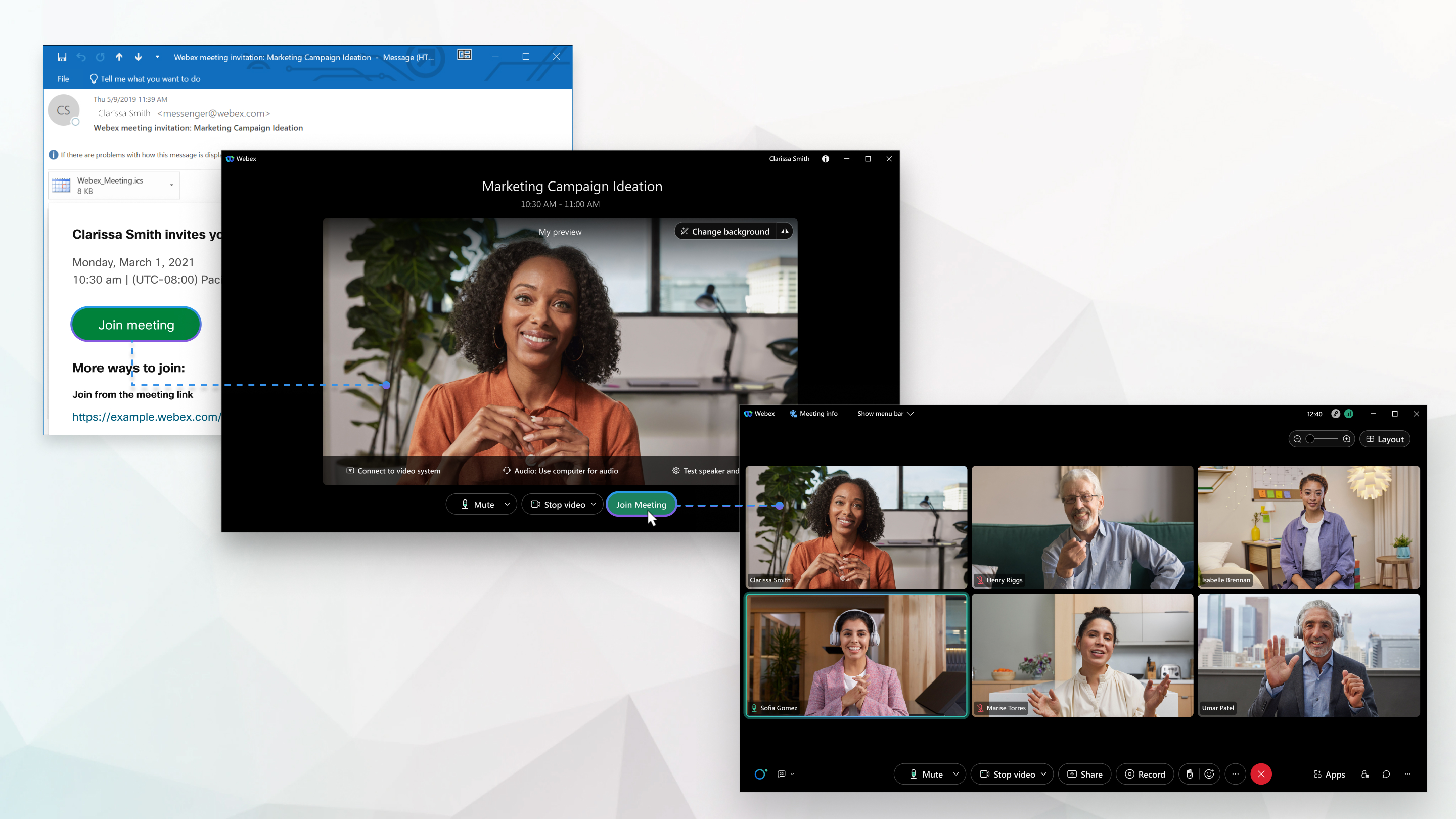
Using the Webex platform on a computer, tablet or smartphone
|
| JOIN MEETING |
Join from the meeting link
https://dc37.webex.com/dc37/j.php?MTID=mfed26a5edb1a02e52d11acdd15670de7
Join by meeting number
Meeting number (access code): 2535 994 5116
Meeting password: s4D2aBCUQQ8
Please make sure mute is selected when you join.
Click start video if you want to be seen when you join.
 |
IOS / ANDROID APP INSTRUCTIONS:
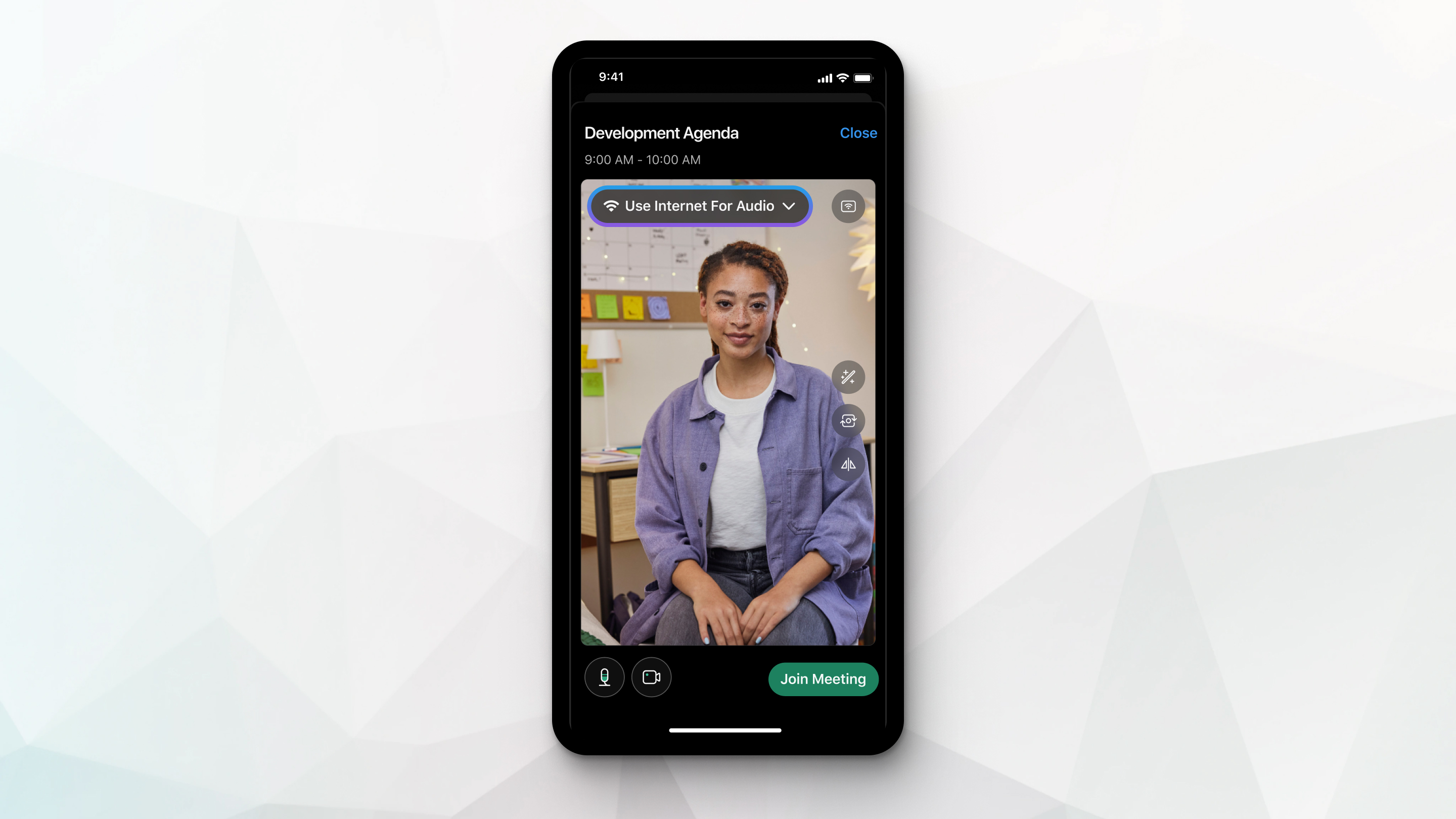
If you would like to join the meeting from your phone, but do not wish to dial in at the number above, you will need to download the Webex mobile app. Clicking “Join Meeting” at the button below will prompt you to download the app.
If you’re joining a meeting for the first time on iOS, you must select the meeting link from your email invitation or calendar again to join the meeting.
Please make sure you are muted when you join. This means the microphone icon on the bottom of your screen should have a line through it.
| JOIN MEETING |
|
BROWSER INSTRUCTIONS:
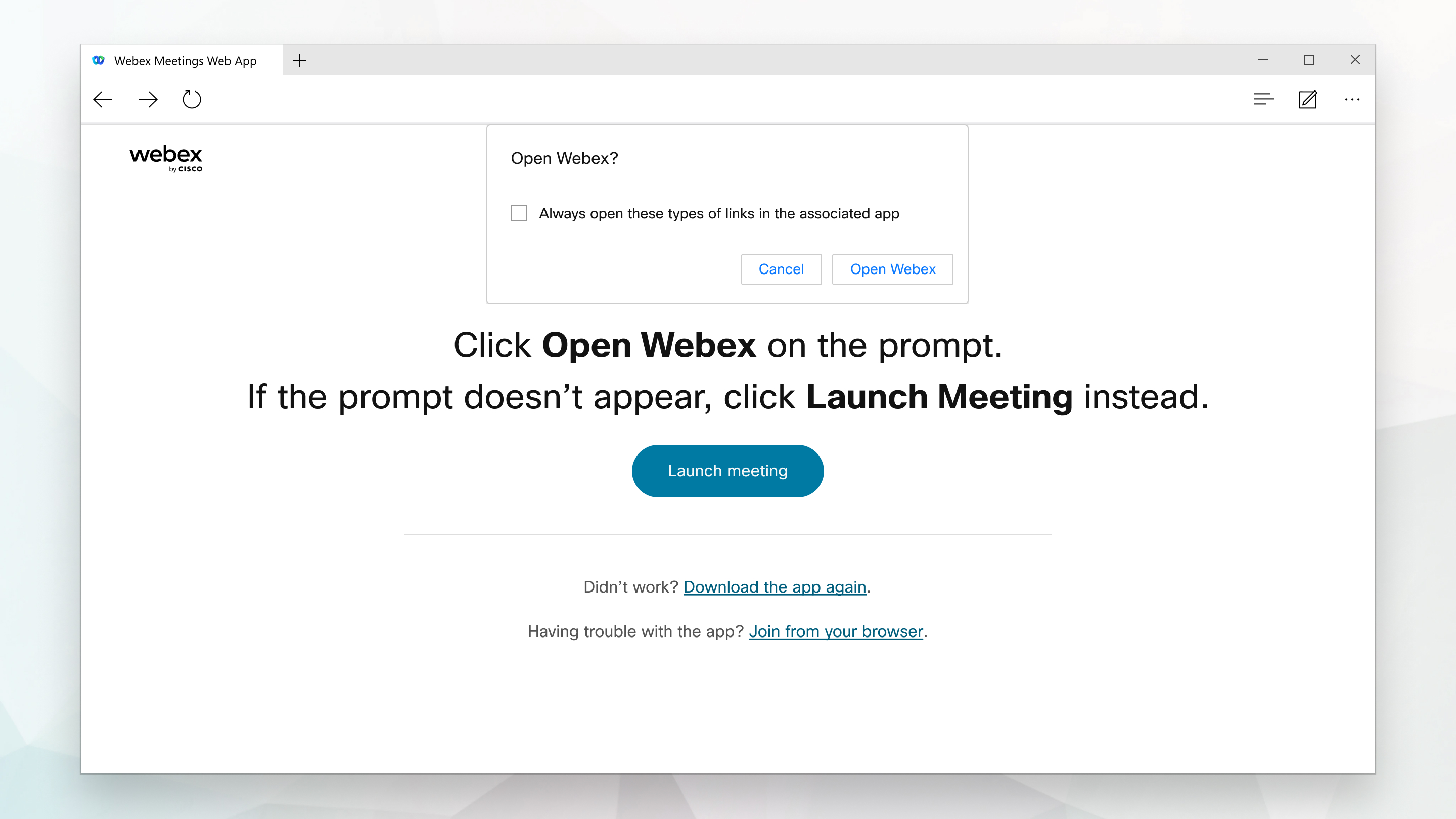
Once you click the "Join Meeting" button Webex will start preparing to connect you to the meeting.
If you join from a Windows computer or Mac, click "Join from your Browser".
If you join from a Linux computer or Chromebook, you won't be prompted to install anything. The meeting simply opens in your browser.
Please make sure mute is selected when you join.
Click start video if you want to be seen when you join.
For a full list of instructions on joining a Webex meeting, click here.
| JOIN MEETING |
Membership is required to attend this meeting. If you are unsure of your standing, please call our office at (212) 815-1781.